First sync and query seeding
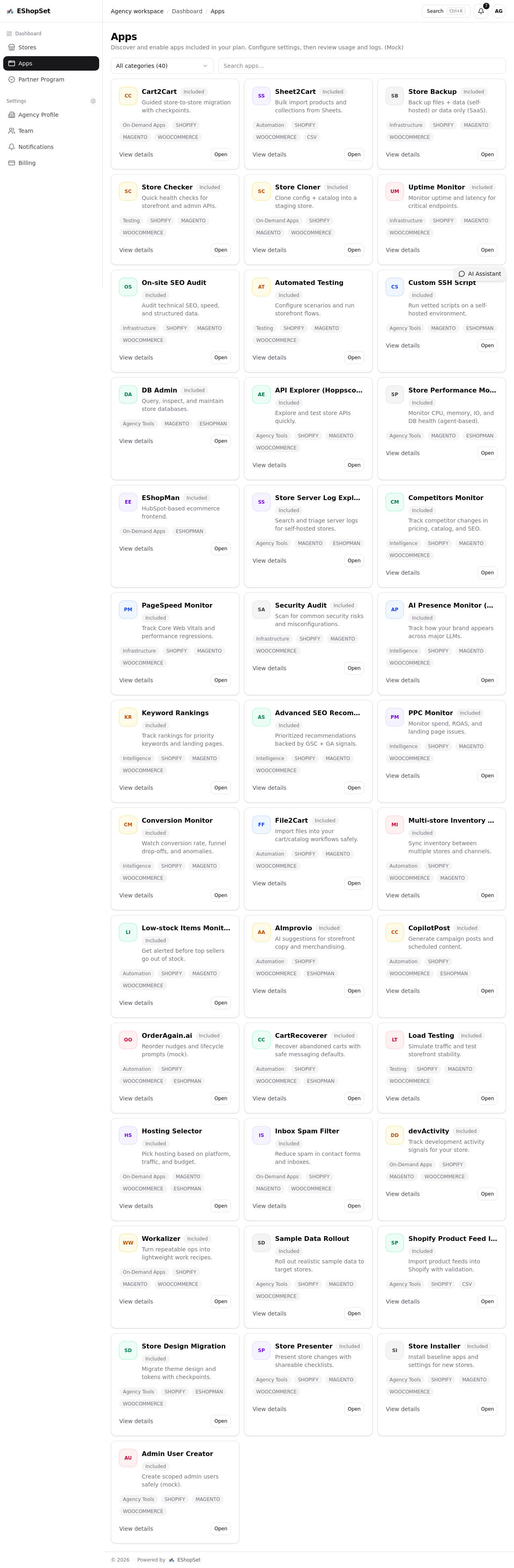
AI Presence needs tracked queries to measure anything. On first enable, the install job can seed a small starter set so Overview is not blank while you explore Settings.
Prerequisites
- Shopify store connected
- AI Presence enabled from the apps catalog
Steps
- Enable AI Presence. Domain is typically seeded from the store.
- Wait for the first job (install sync). Seeding runs inside that job when the keyword list is empty—it is not instant in the browser request.
- Open Overview. You should see data for the seeded queries once the job completes.
- Open Logs if Overview is empty: look for seeding success, “could not generate suggestions,” or skip messages.
Tips
- Install seeding commits a small set (about five queries) so standing sync cost stays bounded—you can add more later in Settings.
- If seeding produced zero queries (provider outage), the next scheduled run can retry until something persists.
Troubleshooting
- Empty forever: add brand/domain and a few queries manually in Settings, then Run now.
- You cleared all queries on purpose: they will not auto-regenerate after a successful seed.